📋 Overview
This guide walks you through the complete installation process for UploadsPro on Shopify 2.0 themes. Shopify 2.0 themes use App Blocks, making installation easier and more reliable.
💡 What is a Shopify 2.0 Theme?
Shopify 2.0 themes (also called Online Store 2.0) support App Blocks and App Embeds, which allow apps to integrate seamlessly without editing theme code. Most themes released after June 2021 are Shopify 2.0 compatible.
🎯 The Setup Guide
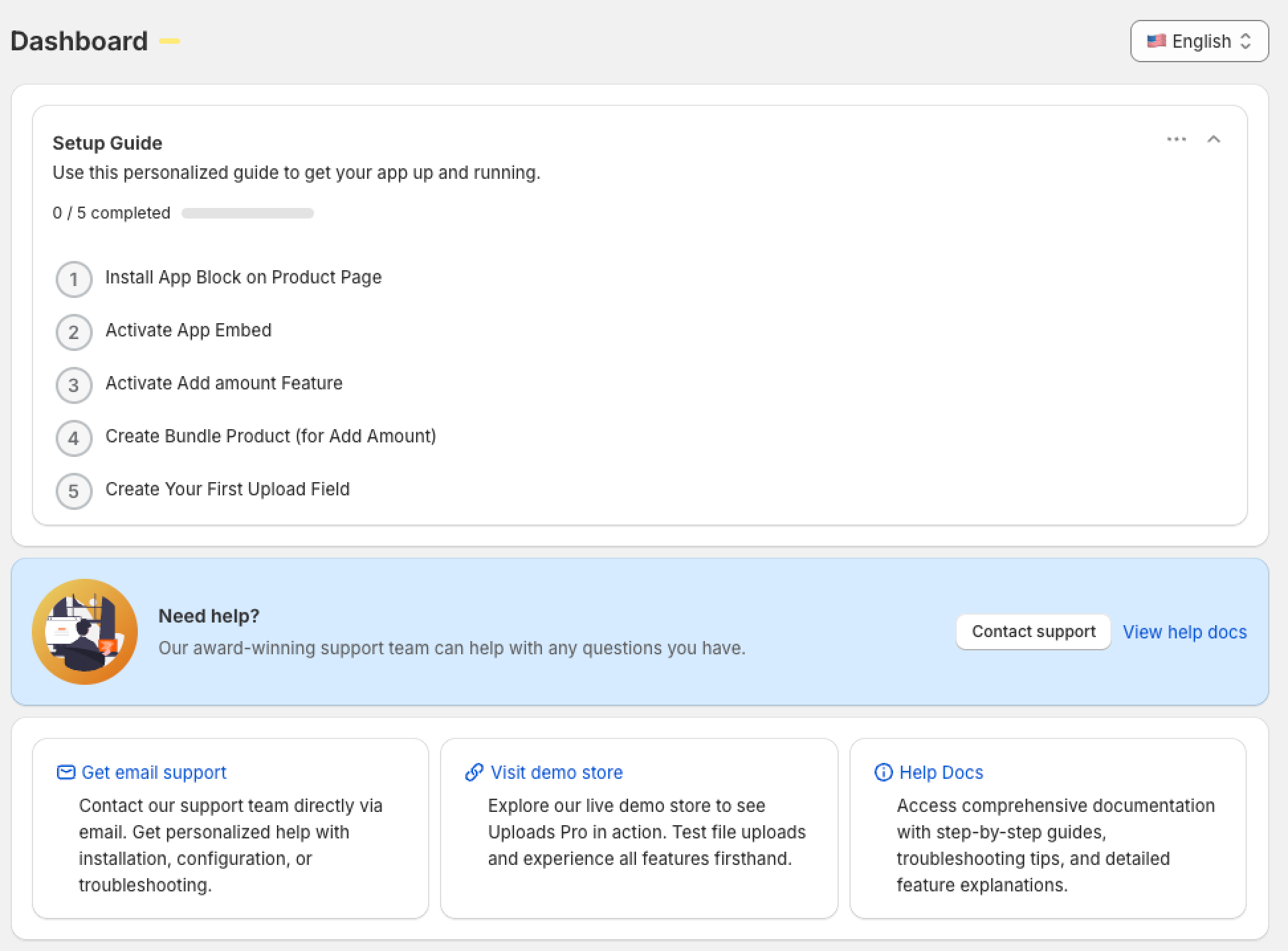
When you first open UploadsPro, you'll see the Setup Guide on your dashboard. This interactive guide walks you through 5 essential steps to get your app working correctly.
📌 Setup Guide Features:
- Step-by-step instructions with visual indicators
- Automatic verification when steps are completed
- Direct links to Shopify admin areas
- Progress tracking with checkmarks
Step 1: Install App Block on Product Page
What This Does
The App Block adds the upload interface to your product pages where customers can upload their files. This is the main component that displays upload fields to your customers.
How to Install
- In the Setup Guide, click the "Install Product Page Block" button
- This opens the Shopify Theme Editor with a product template selected
- Look for the "Add block" option in the left sidebar (or it may auto-open)
- Find "UploadsPro" in the Apps section
- Click to add the block to your product page
- Drag the block to position it where you want (typically before the "Add to Cart" button - Buy Buttons)
- Click Save in the top-right corner
Verification
After saving, return to the UploadsPro app and click "Verify" in Step 1. The app will automatically detect if the block was installed correctly and show a green checkmark ✅.
✅ Success Indicators:
- Green checkmark appears on Step 1
- You can see the UploadsPro block in the theme editor
- The block appears in your product template sections
⚠️ Common Issues:
- Can't find "UploadsPro" block: Ensure the app is installed and App Embed is enabled (Step 2)
- Block not showing: Make sure you clicked Save in the theme editor
- Wrong location: You can drag and reposition the block anytime
Step 2: Activate App Embed
What This Does
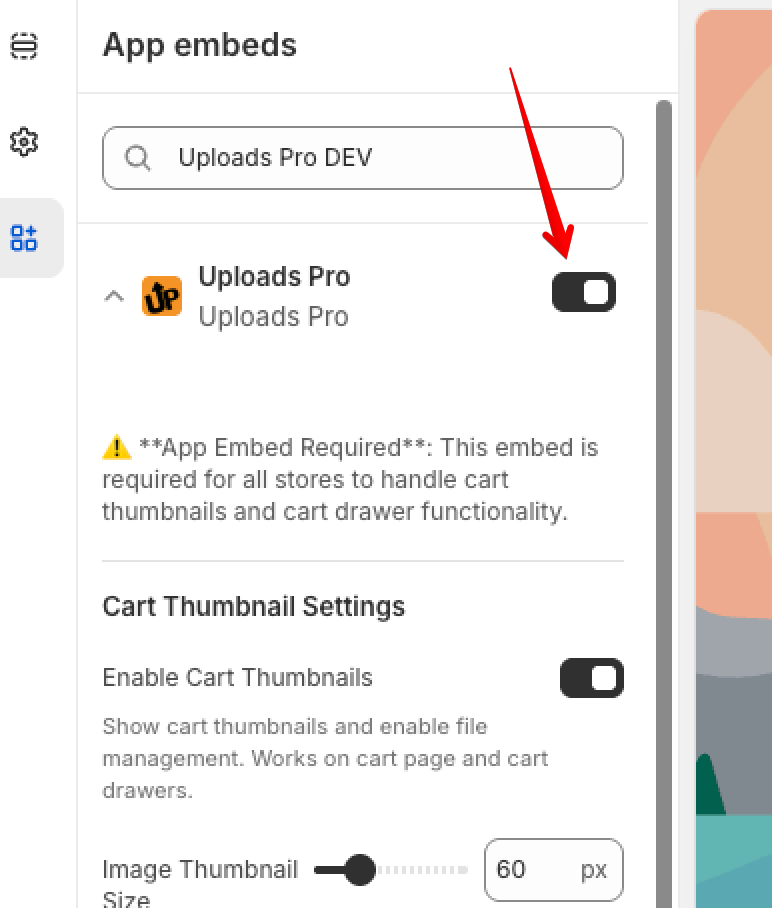
The App Embed loads the necessary JavaScript and CSS files globally across your store. This ensures upload functionality works correctly on all pages, including cart and checkout.
How to Activate
- In the Setup Guide, click the "Activate App Embed" button
- This opens the Theme Customizer with the Apps section highlighted
- In the left sidebar, scroll down to "App embeds"
- Find "UploadsPro Embed" in the list
- Toggle the switch to ON (it should turn green/blue)
- Click Save in the top-right corner
Verification
Return to UploadsPro and click "Verify" in Step 2. If the embed is active, you'll see a green checkmark ✅.
✅ Success Indicators:
- Toggle switch is ON (green/blue)
- Green checkmark appears on Step 2
- App scripts load on your storefront (check browser console)
💡 Important: Both Step 1 (App Block) and Step 2 (App Embed) are required for upload fields to work properly. The App Block shows the UI, while the App Embed loads the functionality.
Step 3: Activate Add Amount Feature
What This Does
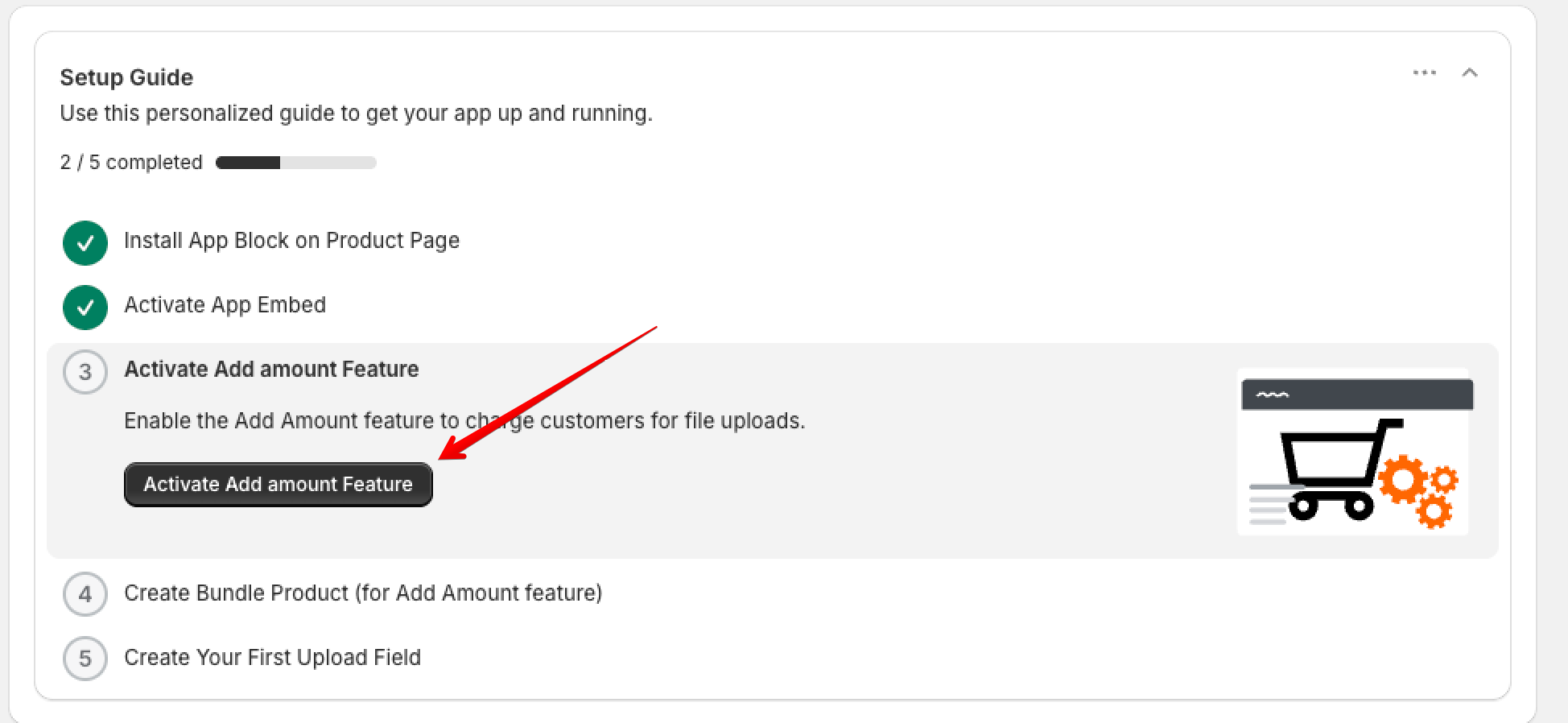
The Add Amount feature allows you to charge extra fees for file uploads. This requires installing a Add Amount feature.
⚠️ Professional Plan Required: This feature is only available on the Professional plan ($9.99/month or $99.99/year).
How to Install
- In the Setup Guide, click "Activate Add amount Feature"
- The app automatically installs the necessary Shopify Function
- Wait for the success message (usually 5-10 seconds)
- No additional steps are required
Verification
The step automatically marks as complete when installation succeeds. You can verify it's working by:
- Going to Shopify Admin → Settings → Checkout
- Scrolling to Cart and checkout validations
- You should see "UploadsPro Feature" in the list
💡 Skip This Step: If you don't plan to charge for uploads, you can skip this step. It can be installed later if needed.
Step 4: Create Bundle Product
What This Does
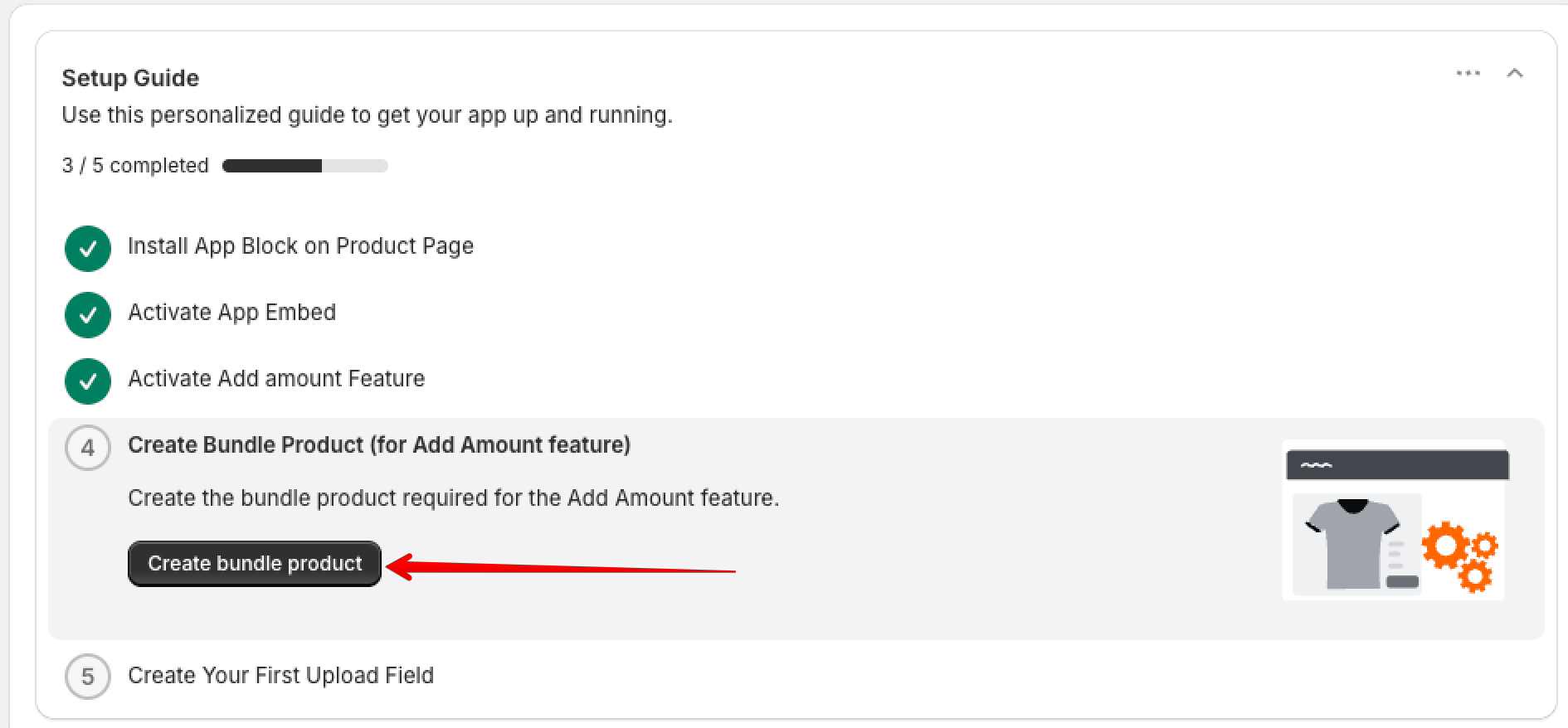
Creates a hidden product used by the Add Amount feature to add fees to the cart. This product is never shown in your catalog.
⚠️ Only Required for Add Amount: Skip this step if you're not using the Add Amount feature.
How to Create
- In the Setup Guide, click "Create Bundle Product"
- The app automatically creates the product with correct settings
- Wait for the success message
- The product is automatically hidden from your online store
Verification
The step automatically marks as complete. You can verify by:
- Going to Products in Shopify Admin
- Searching for "UploadsPro - Fee Bundle"
- The product should exist with "Online Store" sales channel disabled
⚠️ Don't Delete: Never delete this product if you're using Add Amount. The feature won't work without it.
Step 5: Create Your First Upload Field
What This Does
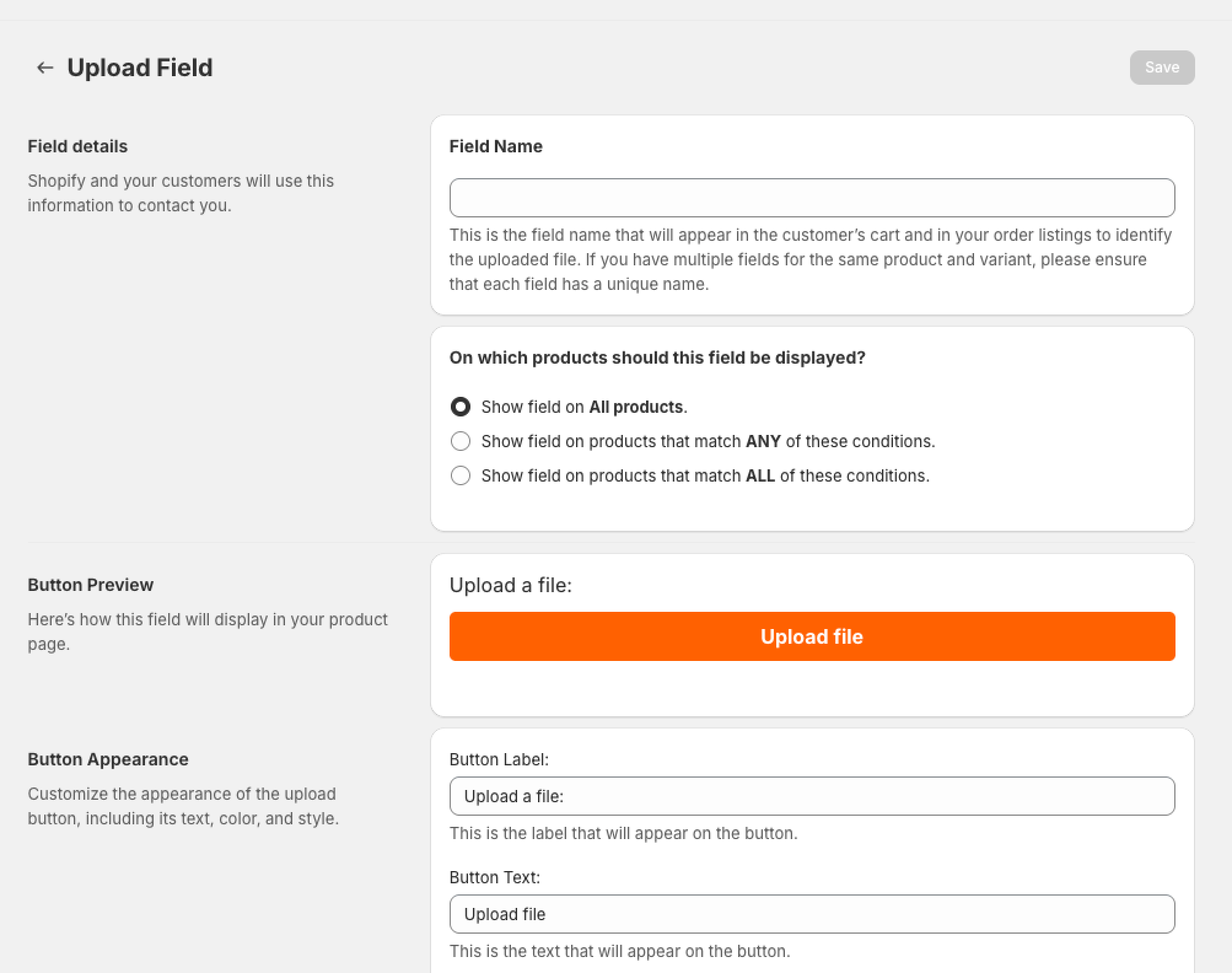
Upload Fields define where and how customers can upload files. You need at least one field to start accepting uploads.
How to Create
- In the Setup Guide, click "Create First Field"
- You'll be taken to the Field Editor
- Configure the field settings in the page.
- Click Save Field
Verification
After saving your field:
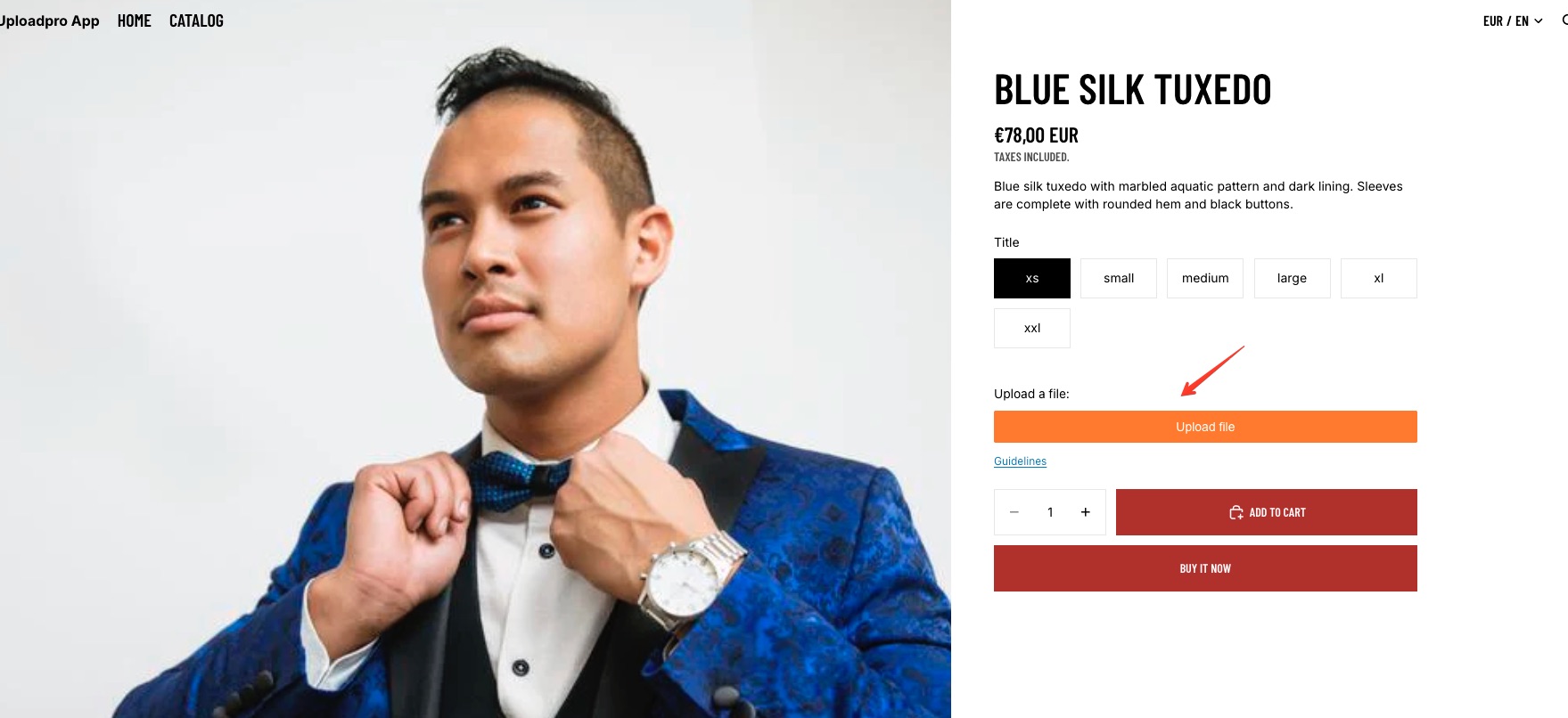
- Visit a product page that matches your field's targeting rules
- You should see the upload button/field appear on the product page
- Test uploading a file to confirm it works
- Return to the Setup Guide and click "Verify"
✅ Success Indicators:
- Upload button appears on product pages
- You can select and upload files
- Green checkmark appears on Step 5
- Setup Guide shows as completed
✅ Completing the Setup
Required Steps (Mandatory)
These steps must be completed for the app to work:
- ✅ Step 1: Install App Block on Product Page
- ✅ Step 2: Activate App Embed
- ✅ Step 5: Create Your First Upload Field
Optional Steps
These steps are only needed if using the Add Amount feature:
- ⭐ Step 3: Activate Add Amount Feature
- ⭐ Step 4: Create Bundle Product
Dismissing the Setup Guide
Once you've completed the required steps, you can dismiss the Setup Guide by clicking the "Dismiss Guide" button. Don't worry - you can always bring it back from settings if needed.
💡 Setup Guide Behavior:
- The guide stays visible until all required steps are complete
- You can dismiss it early, but it will reappear on next visit
- Once dismissed after completing steps, it won't show again
- Dashboard content appears after required steps are done
🔧 Troubleshooting Setup
Setup Guide Not Appearing
- Check if you've already dismissed it
- Look for dashboard settings to re-enable the guide
- Clear browser cache and refresh
Can't Find App Block
- Ensure App Embed (Step 2) is enabled first
- Refresh the theme editor
- Check that your theme is Shopify 2.0 compatible
- Try a different browser
Verification Fails
- Wait 1-2 minutes after making changes
- Clear your browser cache
- Ensure you clicked "Save" in Shopify admin
- Try the verification button again
Upload Fields Not Showing
- Verify Steps 1, 2, and 5 are completed
- Check field targeting rules match the product
- Clear browser cache and test in incognito mode
- Check browser console for JavaScript errors
Theme Changed Detection
If you switch to a different theme, UploadsPro will detect this and reset the setup steps automatically. You'll need to reinstall the App Block and App Embed on the new theme.
💡 Theme Switching: When switching themes, the app remembers your field configurations but requires reinstallation of App Block and App Embed on the new theme.
📦 Complete Your Setup: Order App Block
Don't forget to set up the Order App Block to view uploaded files directly in your Shopify admin order pages!
✨ Recommended Next Step
The Order App Block allows you and your team to view and download customer uploaded files directly from the order detail page in your Shopify admin - no need to open the UploadsPro app separately.
👉 View Order App Block Installation Guide
Why install the Order App Block?
- ✅ Access uploaded files without leaving the order page
- ✅ See product images, variants, and file type icons
- ✅ View customer notes left on files
- ✅ Streamline your order fulfillment workflow
📚 Next Steps
After completing setup, explore these guides:
🆘 Need Help?
If you're stuck during installation:
- 📧 Contact our support team from the app
- 📖 Review the Troubleshooting Guide
- 💬 We're here to help with setup and theme-specific issues
 UPLOADS PRO